SharePoint cleanup, without the PowerShell

SProbot finds savings across your tenant, then trims versions and archives inactive files to reduce storage costs by up to 30%

Trusted by

What SProbot typically finds on a 25 TB tenant

25
%
of storage is consumed by unnecessary content on most tenants
5
TB
average reduction in storage consumption is possible
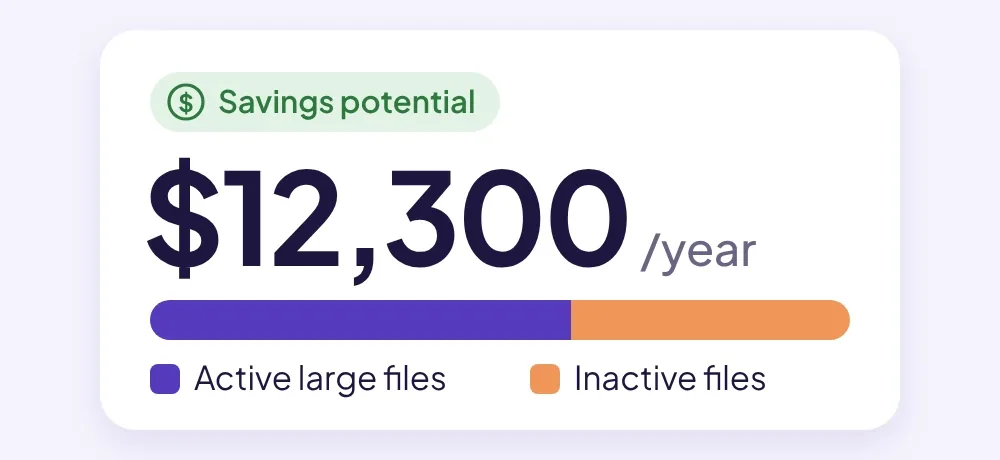
$
12,300
in annual savings from a handful of bulk cleanup actions

Find the terabytes you’re paying for but don’t need

See where your storage (and your money) is going

SProbot crawls every site, file and version in your tenant, so you can answer the questions that matter before you buy more storage.

Icon of a green check mark

Which sites are growing fastest?

Icon of a green check mark

How much of our storage is consumed by unnecessary file versions?

Icon of a green check mark

How much space do inactive files take up?

Icon of a green check mark

What will storage cost us next year if nothing changes?
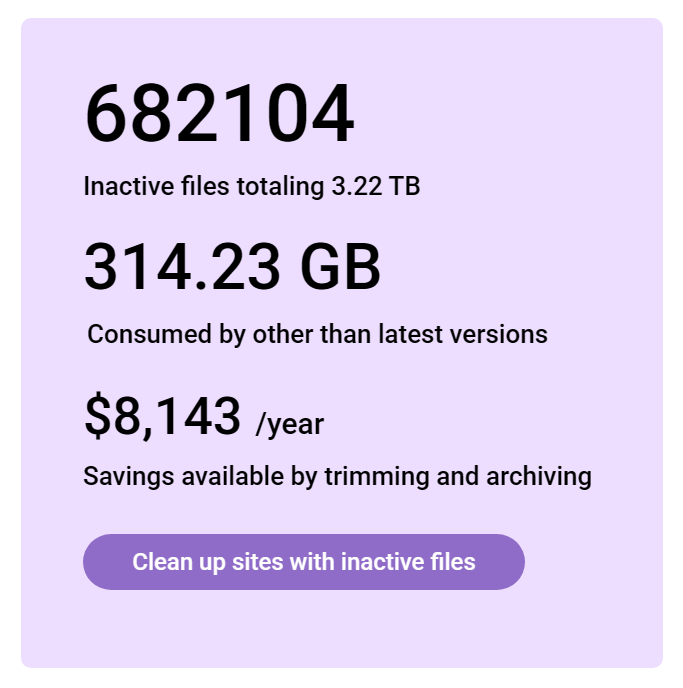
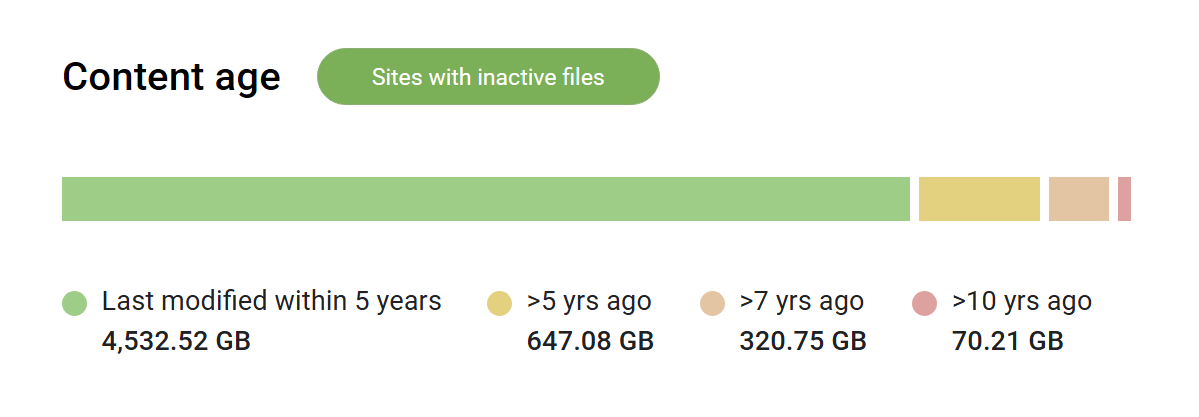
Screenshot of the inactive files summary tile in the SProbot dashboard. Shows the total TB inactive files, GB consumed by other than latest versions, and potential $ savings from version trimming and archiving.
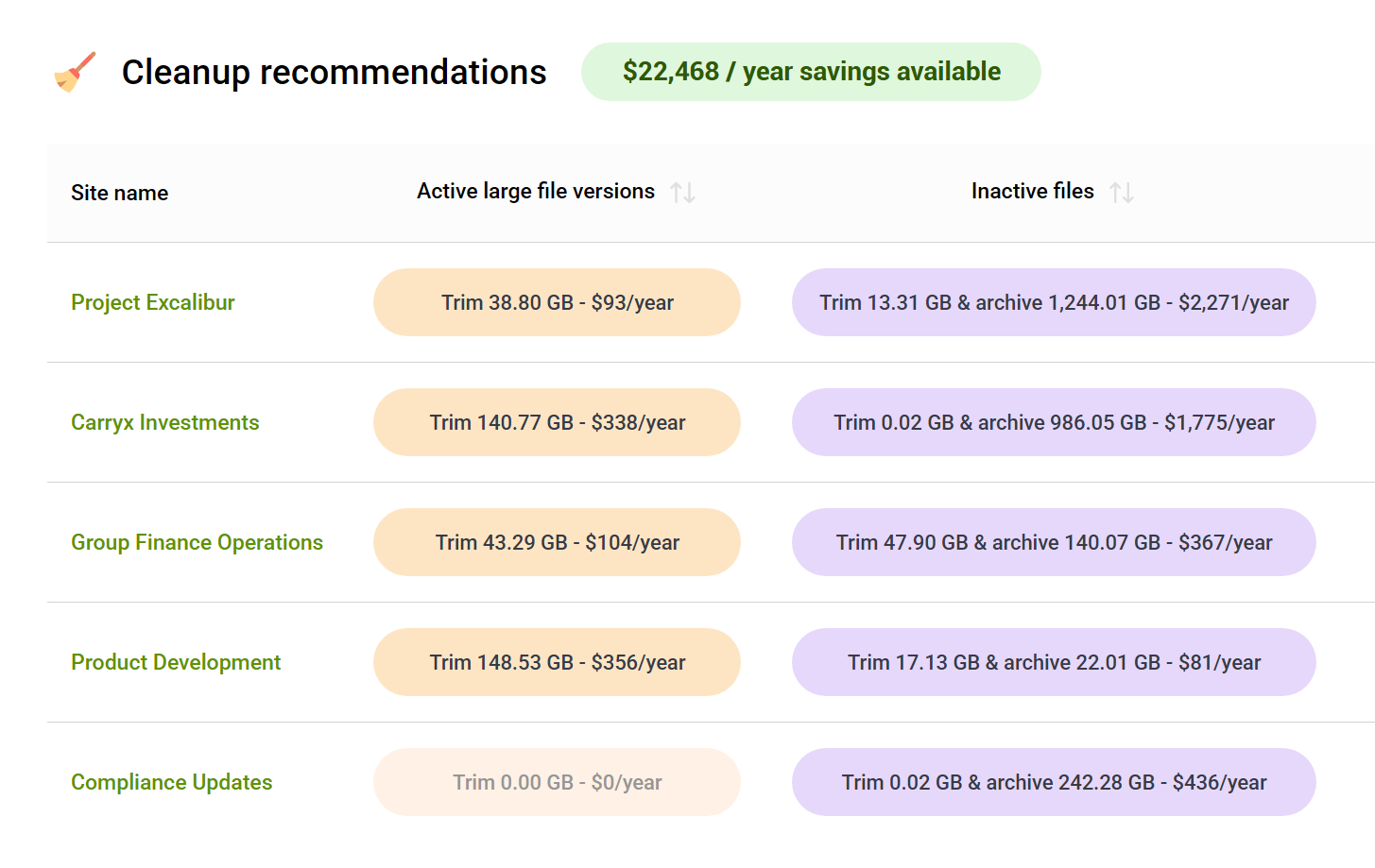
Screenshot of the Cleanup recommendations panel in the SProbot dashboard. Shows a list of sites with buttons displaying $ savings to be had from version trimming and archiving.

Know exactly what you can save, site by site

Cleanup recommendations split every site’s potential savings into two types and rank the biggest savings first.

Icon of a green check mark

Trim older versions of active large files

Icon of a green check mark

Move inactive files to Microsoft 365 Archive for a 75% cost saving over normal storage

Icon of a green check mark

Savings shown in dollars per year at standard Microsoft storage rates

Clean up in bulk with just a few clicks

Start a cleanup job straight from a recommendation. SProbot runs it in the background across all the sites you choose, so nobody spends weeks clicking through libraries.

Icon of a green check mark

Trim versions of active large files to the latest 25, 10 or 5, or keep the latest only

Icon of a green check mark

Archive inactive files, with the option to trim versions first

Icon of a green check mark

Delete sites and files you no longer need

Icon of a green check mark

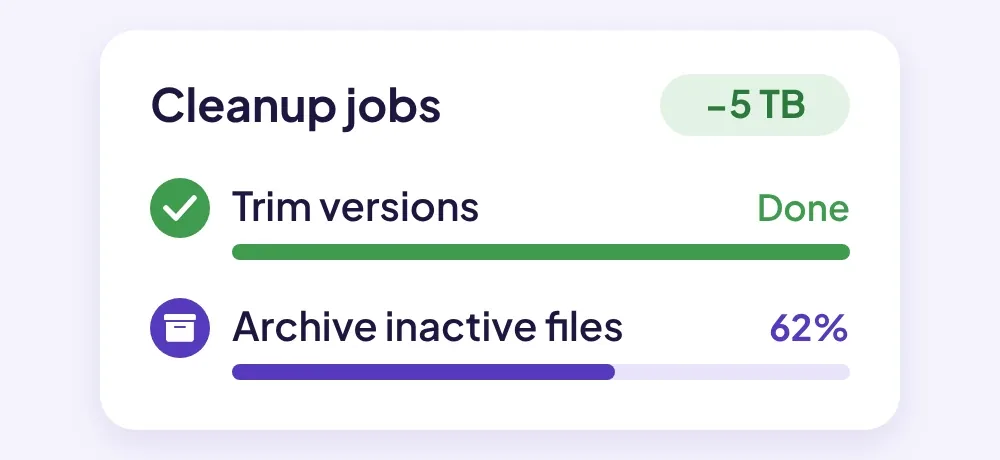
See every job and change in the activity history
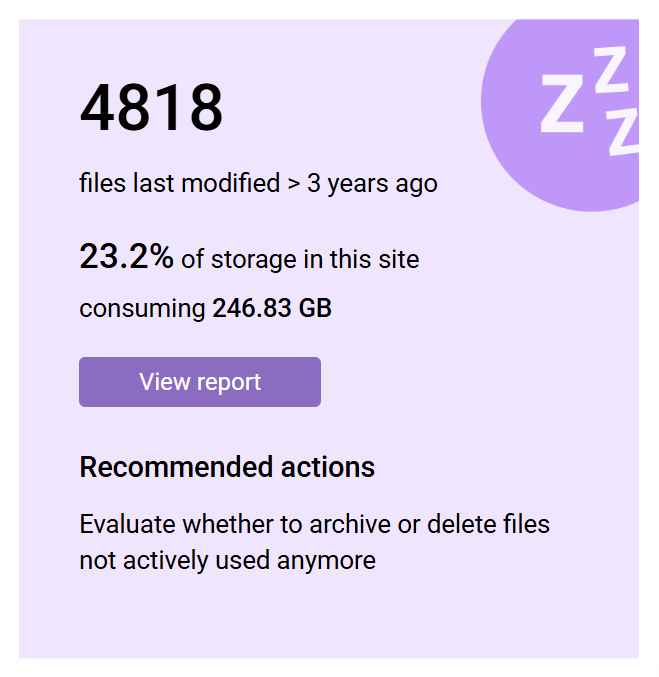
Screenshot of an inactive files tile for a site in SProbot. Shows a count, percentage and GB of storage consumed.
Trim and archive button with a cursor

From storage warning to savings in three steps

It's our mission to help you reduce SharePoint storage costs.

Why? We’re SharePoint and Microsoft 365 admins too, and we’ve seen the same storage problems in more than 100 tenants.
‍Read our story

See SProbot find and clean up storage in 30 minutes

We’ll walk you through the savings reports and bulk cleanup, and answer your questions.

Book a demo